
How to Troubleshoot Common Card Machine UK Issues?
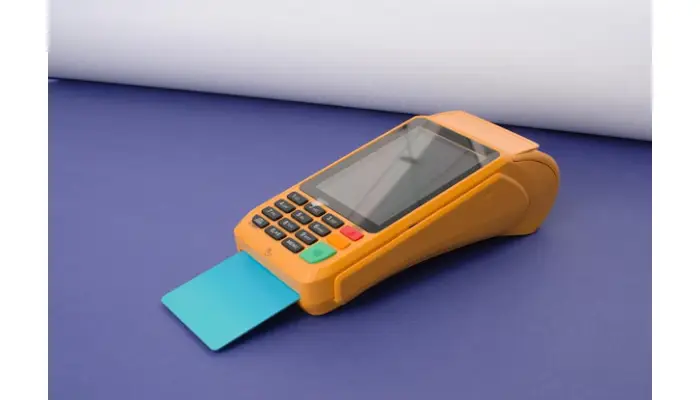
When your card machine acts up, start by rebooting it to clear temporary glitches. If problems persist, try removing the battery for about a minute before reinserting it; just make sure the device is off and unplugged first. Check that your battery is charged at least 25% since low power can cause functions like printing to fail. Insert till rolls properly; errors often happen when the paper isn’t loaded right or missing altogether. For printing issues, clean the roller gently and use only thermal till rolls with correct orientation. For card reader troubles, inspect for dirt or damage and test different cards to find the source of trouble. Connectivity problems usually boil down to checking cables and network stability, while persistent faults might mean it’s time to call support for help.
General Troubleshooting Steps for UK Card Machines
Start by rebooting the card machine in UK to refresh its system and clear any temporary glitches. If that doesn’t help, try removing the battery for about 60 seconds before reinserting it to perform a hard reset, make sure the device is powered off and unplugged first. Check that the battery is charged to at least 25%, as some features like printing receipts and connectivity need a minimum power level to work properly. When loading a till roll, insert it correctly with the paper feeding from underneath and the shiny side facing out to avoid printing errors or transaction declines. Regularly update the card machine’s software to fix bugs and improve performance. Also, inspect all cables and power connections to confirm they’re securely plugged in. Gently clean the card reader and printer components to remove any dirt or debris that might block operation. If your device uses Wi-Fi or Ethernet, restart your networking equipment if you notice connectivity issues. Test transactions with different cards to determine whether the problem lies with the card or the machine itself. If none of these steps solve the issue, be ready to contact support, providing them with device details and any error messages you’ve encountered.
Fixing Printer Issues on Card Machines
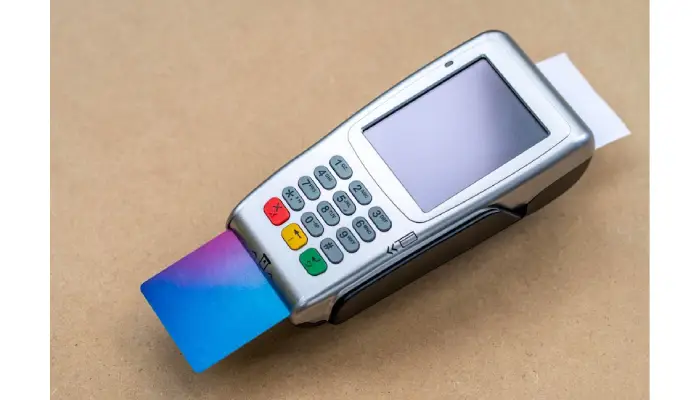
Printer problems on card machines often come down to the till roll or power supply. Always use thermal till rolls, which you can confirm by scratching the paper lightly to check for the thermal coating. Insert the till roll correctly, ensuring the paper feeds from underneath with the shiny side facing outward. The cover should snap shut easily without forcing it; if it doesn’t, inspect the black cog and roller for damage. Dirt and residue on the black roller inside the printer can also cause printing issues, so clean it gently with a slightly damp cloth. Avoid using non-standard or damaged till rolls as these can cause jams or blank receipts. If you spot a paper jam, carefully remove any stuck pieces. It’s a good idea to plug the card machine’s power cable directly into a wall socket rather than an extension lead to maintain a stable power supply, which is crucial for clear printing. When the machine signals the till roll is empty, replace it promptly to prevent sensor errors. Should receipts print faded or faint, try a new batch of till rolls to rule out poor paper quality. After any printer maintenance, restart the device to make sure all changes take effect properly.
- Use only thermal till rolls; verify by scratching the paper to check its thermal coating.
- Insert the till roll correctly: paper should come up from underneath with the shiny side outwards.
- Ensure the till roll cover snaps shut fully without forcing it, checking for damage to the black cog or roller.
- Clean the black roller inside the printer with a slightly damp cloth to remove residue.
- Plug the card machine’s power cable directly into a wall socket instead of an extension lead to provide stable power for printing.
- Avoid using non-standard till rolls or damaged paper that can cause jams or blank receipts.
- Check for paper jams inside the printer and gently remove any stuck paper pieces.
- Replace the till roll promptly when the machine signals it is empty to avoid sensor errors.
- If receipts are faded, try a different batch of till rolls to rule out poor quality paper.
- Restart the device after printer maintenance to ensure the changes take effect.
Troubleshooting Chip Card Reader Problems
If your card machine is not recognizing chip cards, start by restarting the terminal to reset the card reader software. This often clears temporary glitches. Next, inspect the chip card reader slot for any dirt, dust, or debris that might be blocking the connection. You can lightly tap or blow into the slot to dislodge small particles, but avoid using sharp objects or excessive force. Make sure chip cards are inserted correctly, with the chip side facing up and pushed fully into the slot. Trying a different chip card can help determine if the issue is with the card or the reader itself. Avoid forcing cards into the reader, as this can cause hardware damage. Also, check for any visible damage to the chip reader slot or its surrounding casing, since cracks or dents may affect performance. Running any available diagnostics or software updates related to the chip reader can fix known bugs or improve compatibility. If the reader shows signs of physical damage or continues to fail after these steps, it’s best to contact support for repair or replacement. When reporting the issue, document any error codes or messages that appear, as this information speeds up the troubleshooting process.
Solving Magnetic Stripe Card Reader Errors
If your card machine is having trouble reading magnetic stripe cards, start by restarting the device to clear any temporary software glitches affecting the reader. Next, inspect the magnetic stripe reader slot for dust or debris and clean it gently if needed. When swiping, ensure the magnetic stripe on the card is facing the reader and swipe in the correct direction. If the first swipe fails, try swiping the card in the opposite direction. It’s also helpful to test multiple cards to determine if the problem lies with a specific card or the terminal itself. Avoid swiping too fast or too slow, as speed can affect the reader’s ability to detect the stripe properly. Check the cards for visible damage, scratches, or wear on the magnetic stripe, since these can cause read errors. Keep the card reader slot dry and free from moisture, which can interfere with operation. Make sure your card machine’s software is up to date, as updates often include improvements for magnetic stripe recognition. If the reader continues to malfunction or feels worn out, it’s best to arrange for professional service or replacement to avoid ongoing transaction problems.
Resolving Device Stuck on Insert Card Screen
If your card machine is stuck on the insert card screen, start by cleaning the card reader. Wrap a lint-free wipe around a card and gently insert it to remove any dirt or debris that might be causing the issue. Next, check the grip of the card slot by inserting a card facing down; if the card slips out easily, the reader could be faulty and might need repair. Try testing the device with different cards to rule out problems with a specific card. Restart the machine to reset any processes that may be frozen. Also, check for any available software updates, as these often include fixes for freezing or screen lock problems. Inspect the card slot closely for visible damage or objects blocking card entry, and avoid pushing cards in too forcefully, which can jam the reader. If the screen remains stuck, perform a hard reset by removing the battery for about 60 seconds before reinserting it, ensuring the device is powered down and unplugged first. Consult your user manual or online support resources for model-specific reset instructions. If none of these steps work, contact technical support for further assistance.
How to Handle Connectivity Issues?
Start by checking that all physical cables and power cords are firmly connected to both the card machine and any network devices like routers or modems. A loose cable can cause intermittent or no connection. Confirm the internet connection itself is stable, whether your device uses Wi-Fi, Ethernet, or a phone line. If you suspect the connection is slow or dropping, try restarting the card machine along with your modem, router, or any network hubs involved. For wireless devices, make sure the battery has enough charge, ideally above 25%, as low power can disrupt connectivity. If Wi-Fi is weak, move the card machine closer to the router to improve signal strength and check for interference from other electronics such as microwaves or cordless phones. Review the network settings on the device to ensure the Wi-Fi or Ethernet configurations are correct, including network name and password. Many card machines have built-in network diagnostics tools, run these to identify specific connection problems. Also, update the card machine’s software regularly since updates often include fixes for connectivity issues. If problems persist and the internet connection is unreliable, contact your service provider to verify if there are outages or service problems on their end.
Dealing with Till Roll Sensor Alerts and Battery Problems
Till roll sensor alerts often happen when the till roll is empty, inserted incorrectly, or the sensors are obstructed. Always load the till roll so the paper feeds from underneath with the thermal side facing out, ensuring sensors are clear of dust or residue. Using damaged or non-standard rolls can cause errors, so stick to approved till rolls and replace them promptly when the machine signals an empty roll. Gently cleaning sensors with a soft cloth can prevent false alerts and improve sensor accuracy. Battery issues can also lead to performance problems, especially during printing or wireless use. Keep the battery charged above 25% to avoid operational hiccups. If battery errors occur, try removing and reconnecting the battery to perform a hard reset. Monitor battery health regularly and replace it if it no longer holds a good charge. Avoid running the device at very low battery levels for long periods since this can degrade performance. Always use manufacturer-approved batteries and chargers to maintain reliability. If you suspect hardware damage in the sensor or battery compartment, it’s best to contact a professional technician for repair rather than attempting further troubleshooting.
When to Contact Card Machine Support
If none of the general troubleshooting steps fix your card machine issue, it’s time to reach out for professional support. Persistent hardware faults that remain after rebooting or applying software updates indicate deeper problems that you likely can’t resolve on your own. Contact support if you face complex connectivity issues or need help with network configurations beyond basic checks. When your device displays error messages or codes not listed in the user guide, the manufacturer’s support team can provide specific guidance. Physical damage to the card reader, printer, or battery compartment also requires expert attention to avoid further issues. If software updates fail to install properly or cause new problems, support can help diagnose and fix these complications. For ongoing card reading or printing errors that refuse to clear, or if the device freezes or buttons stop responding, the hardware may be failing, and professional repair might be necessary. Many manufacturers and providers offer remote diagnostics, so keeping your device model and serial numbers handy will speed up the process and ensure you get the right assistance quickly.
Frequently Asked Questions
1. Why is my card machine not connecting to the internet even though the network is working?
If your card machine won’t connect despite a working network, check if it’s properly linked to the right Wi-Fi or Ethernet connection. Restart the device and confirm the network settings match your provider’s requirements. Also, some machines need firmware updates to stay compatible with current network protocols.
2. How can I fix error messages showing up during a transaction?
Error messages often point to issues like unreadable cards, communication problems, or software glitches. Start by cleaning the card reader slot with a soft, dry cloth and ensure the card is inserted correctly. If errors persist, reboot the machine or check for software updates that address known bugs.
3. What should I do if the card machine keeps losing power or shutting off unexpectedly?
Frequent power loss usually stems from issues with the power source, cables, or battery. Verify the power cable is securely connected and undamaged. If your machine uses a battery, make sure it’s charged or try replacing it if it’s old. Faulty power adapters can also cause shutdowns, so test with a different compatible charger if possible.
4. Why does my card machine fail to read chipped or contactless cards sometimes?
Intermittent failures to read chip or contactless cards can be caused by dirt or damage on the reader or card, or interference from other electronic devices. Clean the reader gently and test with multiple cards to isolate the problem. Make sure your machine’s software supports the latest card technologies and update if needed.
5. How do I resolve slow or delayed transaction processing on my card machine?
Slow transaction times often relate to poor network connectivity or overloaded system memory. Check your internet connection strength and switch to a more stable network if available. Restarting the machine can clear temporary memory issues. If delays continue, contact your service provider to verify if there are system-wide issues affecting processing speed.
TL;DR This guide covers common troubleshooting tips for UK card machines, including basic steps like rebooting and battery resets. It explains how to fix printer problems, clear chip and magnetic stripe reader errors, and address when devices get stuck on the insert card screen. Connectivity issues are tackled by checking cables and network status, while sensor alerts and battery faults are also addressed. If problems persist after trying these fixes, contacting support is recommended for hardware repairs or software assistance.

Kristy Blanchard is a Kansas-based writer and blogger. She has a passion for writing and exploring different cultures. She has a degree in English Literature and is currently studying marketing. She spends her free time exploring Kansas and always has a new story to tell. She loves to share her experiences in her blog, where she writes about everything from fashion and food to travel and culture.


